A prototype was created successfully using Firebase Studio, tested with email/password was successfully added into Authentication and Firestore users collection.
But when trying to add Google Sign-In, first got “Firebase: Error (auth/unauthorized-domain)”, found the connection was not established to Firebase Console.
Created the project manually in Firebase Console and added .env.local with Firebase configuration, restarted the server.
Then added https://6000-firebase-studio-1748093797246.cluster-6dx7corvpngoivimwvvljgokdw.cloudworkstations.dev as URI in GCP OAuth Client
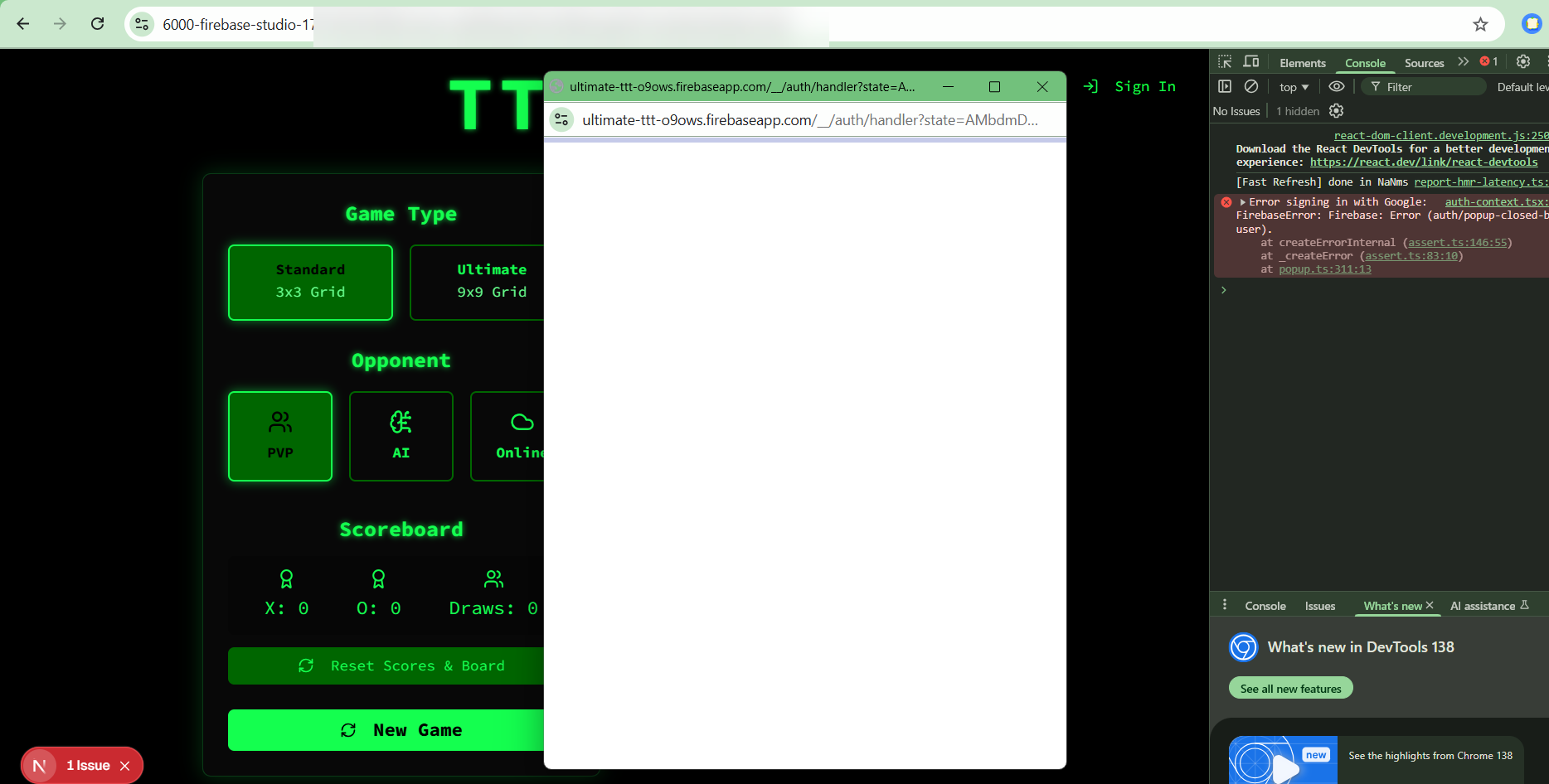
Google Sign-In popup seems working but closed with error Google Sign-up Cancelled or Failed as screenshot below.
Any suggestion where to look into…
Thanks
i have the same issue
i pasted the URL into firebase auth > authorized domain but issue remain
worse thing is if i run via prototyper (screenshot below), same code base, it run without issue.
hopefully firebase “viber” or the developer could give us some youtube tutorial to address such issue. thanks
Try this and let me know if you’re able to pinpoint the issue.
Summary
App Check & Auth Troubleshooting Guide
If you are seeing the auth/popup-closed-by-user error during sign-in, and you are certain you did not close the window, it is almost always caused by a misconfiguration in Firebase App Check or Firebase Authentication domain settings.
The authentication request is being blocked before our application’s code can even run, causing the browser to kill the pop-up window prematurely.
How It Works: The Chain of Trust
To fix this, you must ensure three separate services all trust your application’s domain.
- Firebase Authentication: Needs to know your domain is allowed to start a login.
- Google Cloud (reCAPTCHA): The underlying service for App Check needs to know your domain is allowed to generate a security token.
- Firebase App Check: Needs your developer debug token for local development.
A failure in any one of these steps will cause the login pop-up to fail silently.
The Complete Setup Checklist (CRITICAL)
Follow these steps exactly. The issue is almost certainly a missed step here.
 Step 1: Authorize Your Domain in Firebase Auth
This is the most common point of failure.
- Go to the Firebase Console.
- Navigate to Build > Authentication.
- Select the Settings tab.
- Under Authorized domains, click Add domain.
- Add the full domain of your development environment (e.g., your complete cloud workstation URL:
9000-firebase-studio-....cloudworkstations.dev).
- Add your production domain (e.g.,
dealvault.pro).
- Click Add.
Step 2: Whitelist Your Domain for reCAPTCHA in Google Cloud
This is the second most common point of failure.
- Go to the Google Cloud Console Credentials Page for your project.
- Find the key named reCAPTCHA v3 Site key for [your-project-id].
- Click the pencil icon to edit this key.
- Under Website restrictions, click ADD.
- Add the domain of your development environment (e.g., your complete cloud workstation URL,
localhost).
- Add your production domain (
YOURDOMAIN.COM).
- Click Save.
Step 3: Add Your Debug Token to App Check
This is required for local development.
- In the Firebase Console, go to Build > App Check.
- Select the Apps tab and register your web application if you haven’t already. Ensure reCAPTCHA v3 is selected and enforcement has been turned on.
- Run your application locally (
pnpm dev).
- Open the browser’s developer console. You will see a message like this:
App Check debug token: [A-LONG-TOKEN-STRING]. You will need to add it to your app's App Check settings...
- Copy this token.
- Go back to the Firebase Console > App Check > Apps tab.
- Find your web app, click the three-dot menu, and select Manage debug tokens.
- Click Add debug token and paste the token you copied.
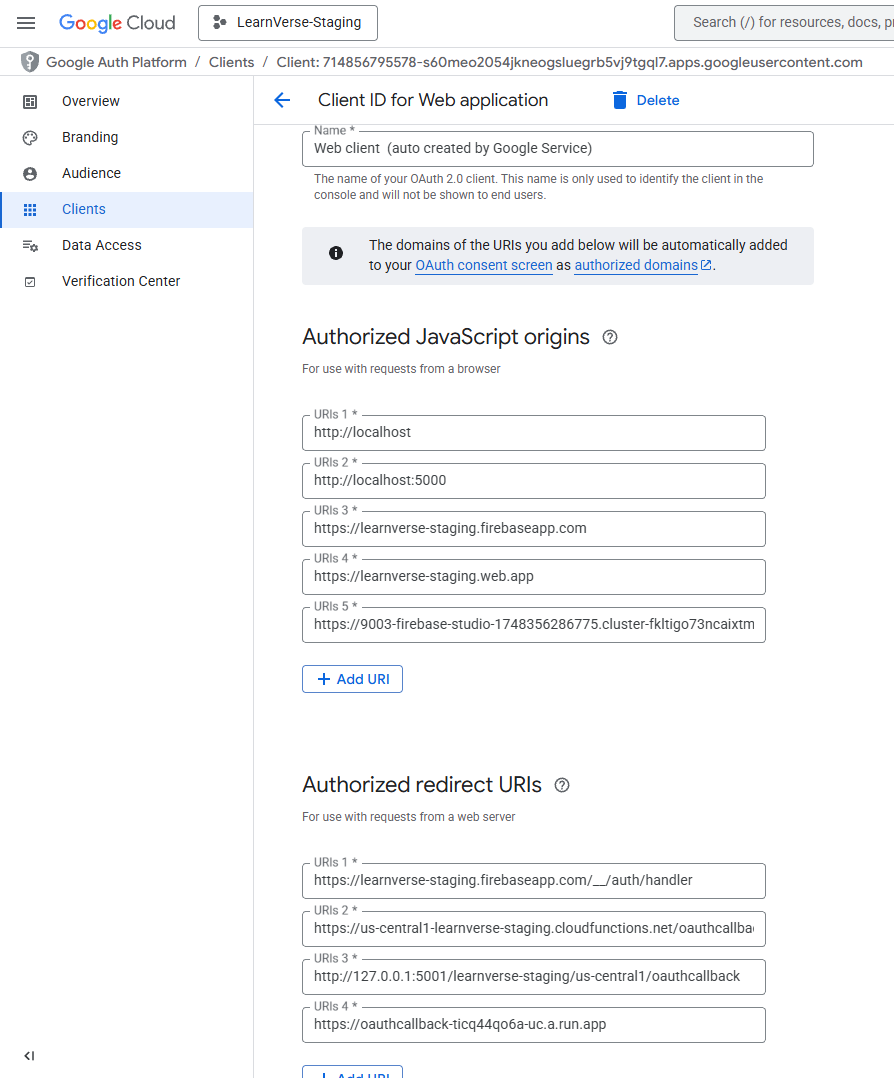
Step 4: Configure OAuth Redirect URIs in Google Cloud
This is the final, critical step. It tells Google’s OAuth service which specific URLs are allowed to receive the response from the login pop-up. A mismatch here causes the redirect_uri_mismatch error.
-
Go to the Google Cloud Console Credentials Page for your project.
-
Under OAuth 2.0 Client IDs, find the client ID being used by your web application. It will likely be named something like “Web client (auto created by Google Service)”. Click the pencil icon to edit it.
-
Under Authorized redirect URIs, click ADD URI.
-
You must add the URI for the Firebase-provided authentication domain. This is the domain that actually handles the pop-up logic. You can find this in your Firebase project settings, it will look like YOUR_PROJECT_ID.firebaseapp.com.
-
Click Save.
After completing all four steps, your authentication flow should be correctly configured for both development and production.
Ideally, Firebase would set this all up for you, but this is a manual process where any step can go wrong and you likely won’t have any relevant logging server or client side to let you know which step failed.
It’s inconvenient to have to authorize domains in the OAUTH credentials page, ReCAPTCHA page, and in Firebase Console. That’s three different platforms that all need to be configured properly just to have your basic authentication flow working. Surely this could be simplified for users.
@kirupa @jamesor
Humble request to simplify this process within Firebase Studio, perhaps with an .authorized-domains file that can then use the SDK or gcloud to facilitate changes without leaving the IDE.
Hi @DoctorDev2023
Thank you for the comprehensive Troubleshooting Guide. 100% agree with you…
I had followed your guide steps as below…
- Authorize Domain in Firebase Auth (see screenshot 114512)
- If reCAPTCHA is not enabled, this should not be the problem, right?
- If not Running application locally, App Check is not necessary, right?
- Configure OAuth Redirect URIs in Google Cloud (see screenshot 115342)
But still got Firebase Error (auth/unauthorized-domain) (see screenshot 115440)
Any suggestion…
An error occurred: Sorry, new users can only put one embedded media item in a post.
An error occurred: Sorry, new users can only put one embedded media item in a post.
You might need to put in the App check debug token.
Can you open Developer Tools and show the Console too?
I like to pin it to the right side of my screen with the preview and prototyper open.
Here is the screenshot and log.
Thanks for your help.
studio.firebase.google.com-1751978637542.log
MubieSam,
I can’t say for certain what the issue is, but I would also setup ReCAPTCHA.
If you can, paste the full developer console logs for us to review.
Console
Like this
I’m looking for any logs that may reference Firebase App Check.
Hi @DoctorDev2023
The log is attached under the screenshot. studio.firebase.google.com-1751978637542.log
Thanks
An error occurred: Sorry, new users can only put 2 links in a post. (there are too many links in the log)
The HTTP 502 errors at the start are peculiar.
I would take that log and feed it back into the prototyper so it can look for issues.
I don’t see any Firebase App Check initialization happening based on your logs.
I would ask it to review your Firebase implementation.
Did you resolve this? I can help if you still need it
it will be nice to learn since I will use Firebase Studio anyway, thank you
Hi @Antonio_Scott
Thanks for your detail instructions, our previous project had beeen cancelled, but a new project will begin early next month, will try it out and feedback the result.





 Diagnostic CLI Tool: