Hello,
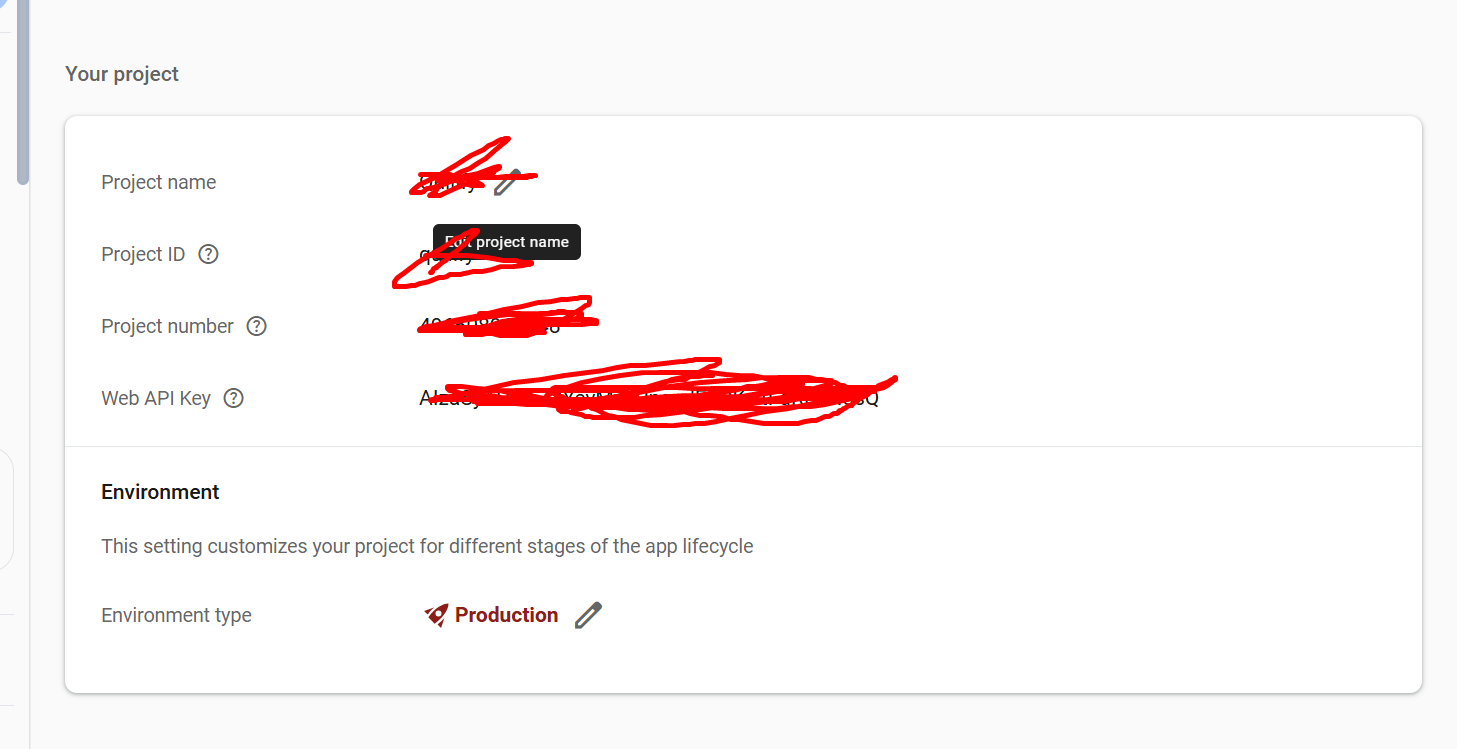
There used to be a public Facing app name which is used for %%App_Name%% on firebase authentication email templates. But on this my particular project, its nowhere to be found.
Hi there,
It looks like the %%App_Name%% variable in your Firebase Authentication email templates isn’t resolving because the project’s public-facing app name is either missing or hidden in the new Firebase Console layout. Here’s how to fix it step by step:
Open Firebase Console for your project.
Click the gear icon ( ) → Project Settings.
In the General tab, look for “Public-facing name” (sometimes called “Project Display Name”).
If it’s empty, enter the name you want users to see in emails.
Click Save.
Navigate to Authentication → Templates.
Open the email template you want to edit (e.g., Welcome Email, Password Reset).
Ensure that %%App_Name%% is still present in the template body.
Use the Preview or Send Test Email button to confirm it now displays the name you entered.
If you manage multiple projects (e.g., dev, staging, production), make sure you are editing the template in the correct project.
Sometimes a blank %%App_Name%% appears because the wrong project environment is selected, even though the correct name is set elsewhere.
If you want to be absolutely sure the email displays the name, you can replace %%App_Name%% temporarily with the actual name while you sort out the console settings.
Example:
Welcome to MyApp!
instead of
Welcome to %%App_Name%%!
 Key Takeaway
This is a configuration signal, not a bug. Updating the project’s public-facing name and ensuring you’re in the correct environment will resolve %%App_Name%% in your email templates.
%%App_Name%% in Firebase Email TemplatesStep 1: Open Firebase Console
Go to Firebase Console and select your project.
Top-right gear icon () → click Project Settings.
Visual cue: The gear icon is next to “Project Overview” in the top-left menu bar.
Step 2: Locate the Public-Facing Name
In Project Settings → General tab, scroll down to “Your Project” section.
Find “Public-facing name” (sometimes labeled “Project Display Name”).
If the field is empty, type in the app name you want users to see in emails.
Click Save.
Visual cue: It’s the same field you saw when first creating the project — usually right below Project ID and Project Number.
Step 3: Open Authentication Email Templates
On the left menu, click Authentication.
Select the Templates tab.
Open the email template you want to edit (e.g., Welcome Email, Password Reset).
Visual cue: The template editor shows a live preview and the editable email body. Look for
%%App_Name%%placeholders.
Step 4: Verify or Test
Make sure the %%App_Name%% placeholder exists in the body.
Click Preview to see what the email will look like.
Optional: Use Send Test Email to check that your name appears correctly in the inbox.
Visual cue: The preview panel updates dynamically when you type or edit. Test emails appear in your inbox exactly as the end-user would see them.
Step 5: Double-Check Environment
If your project has multiple environments (dev, staging, production), confirm that the template you just edited is for the environment you intend to use.
Mistakes here are a common reason why %%App_Name%% appears blank.
Step 6: Temporary Hardcode (Optional)
If needed, replace %%App_Name%% temporarily with the app name while resolving settings:
Welcome to MyApp!
This ensures the email displays correctly while you double-check the console.
Quick Summary for Visual Learners
Gear icon → Project Settings → General → Public-facing name
Authentication → Templates → Verify %%App_Name%%
Preview / Send test email → Confirm display
Multi-environment check → Make sure you edited the right project
See if this helps move you along