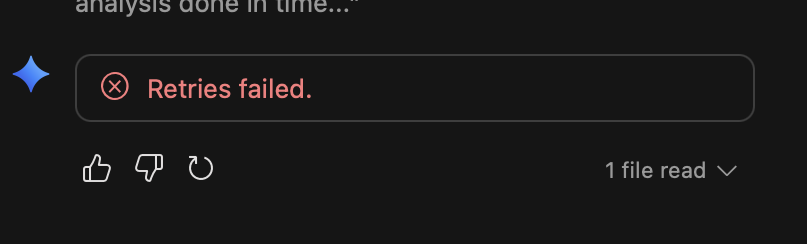
Hello! This sounds incredibly frustrating, and I’m so sorry to hear you’re completely blocked.  That is definitely not the experience we want for you, especially after all the effort and cost you’ve put into your project.
You have done all the right troubleshooting steps (new browser, /clear, different models). This tells us the problem isn’t a simple cache issue, a bad chat context, or a single-model outage.
When this happens, it points to a more persistent issue, either with the workspace VM itself or with your project’s underlying API permissions.
Here are the next steps to diagnose and fix this.
 Solution 1: “Hard Restart” the Workspace VM
You mentioned you “Restarted the project,” but a “Hard Restart” is a more powerful command that fully power-cycles the underlying virtual machine. This is the most effective way to clear a “stuck” state.
-
Press Cmd+Shift+P (on Mac) or Ctrl+Shift+P (on Windows/Linux) to open the command palette.
-
Type in Firebase Studio: Hard Restart.
-
Select that option and press Enter.
This will completely shut down and restart the VM, clearing all processes and temporary state. After it reloads, please try a simple prompt (like “hello”) in the chat.
 Solution 2: Check Your Project’s API Quotas & Permissions
If a Hard Restart doesn’t work, the problem is likely not in the workspace itself, but with your Google Cloud project’s settings. The “Retries Failed” error often means the requests from the Studio backend to the Gemini API are being actively rejected.
This can happen for two main reasons:
-
The API was disabled: The AI features in Studio require the “Vertex AI API” to be enabled.
-
You’ve hit a quota: You mentioned API fees. It’s possible your project has hit a safety quota (like requests per minute) or has an issue with its billing account.
Here’s how to check:
-
Go to the Google Cloud Console: https://console.cloud.google.com/
-
Make sure you have the correct project selected (the one linked to your Firebase app).
-
In the search bar, go to “APIs & Services” > “Enabled APIs & Services”.
- Look for “Vertex AI API”. Is it listed? If not, you may need to find and enable it.
-
In that same “APIs & Services” section, click on “Quotas”.
- This page can be complex, but you can filter for “Vertex AI” or “Gemini” and look for any quotas that are at 100% or showing errors.
 Solution 3: The “Fresh Workspace” Workaround
If all else fails, this indicates a deep, unrecoverable issue with that specific workspace VM. The safest and fastest way forward is to move your code to a new, clean workspace.
-
Push Your Code: Make sure all your latest work from your current (broken) workspace is pushed to a Git repository (like GitHub).
-
Create a New Workspace: Go to the Firebase Studio dashboard and create a brand new, empty workspace.
-
Clone Your Repo: In the new, clean workspace, open the terminal and git clone your project.
-
Run npm install (or pip install -r requirements.txt for your Python app) to set everything up again.
This creates a completely new VM instance that is not “stuck” and should have a fresh, working connection to the AI services.
I truly hope a Hard Restart (Solution 1) is all it takes to get you unblocked. Please let us know if any of these steps help!